Tools & Permissions
Tools are the actions an agent can perform. Most tools come from the MCP servers bound to the agent; a few additional ones come from the sandbox when the agent is bound to one.
How tools flow through an agent
- The backend connects to every MCP server bound to the agent
- For each server it calls
tools/listand receives the tool schemas - It filters the list using the tool settings you set on this agent (disabled tools are removed; “needs approval” tools are marked as HITL interrupts)
- If the agent has a sandbox, it appends the file and shell tools (
ls,read_file,write_file,edit_file,glob,grep,execute), awrite_todosplanning tool and atasktool that delegates to a general-purpose helper with the same tools - If the agent has skills, it appends
lsandread_fileover the skill files (when there is no sandbox) and lists the skills in the system prompt - If subagents are attached, it wraps each one as a tool
- The resulting toolset is handed to the LLM via LangGraph
The three tool states
Each tool on an agent-server binding has one of three statuses. This is how you give an agent tight, read-only access to one server and full write access to another — without having to juggle separate agents.
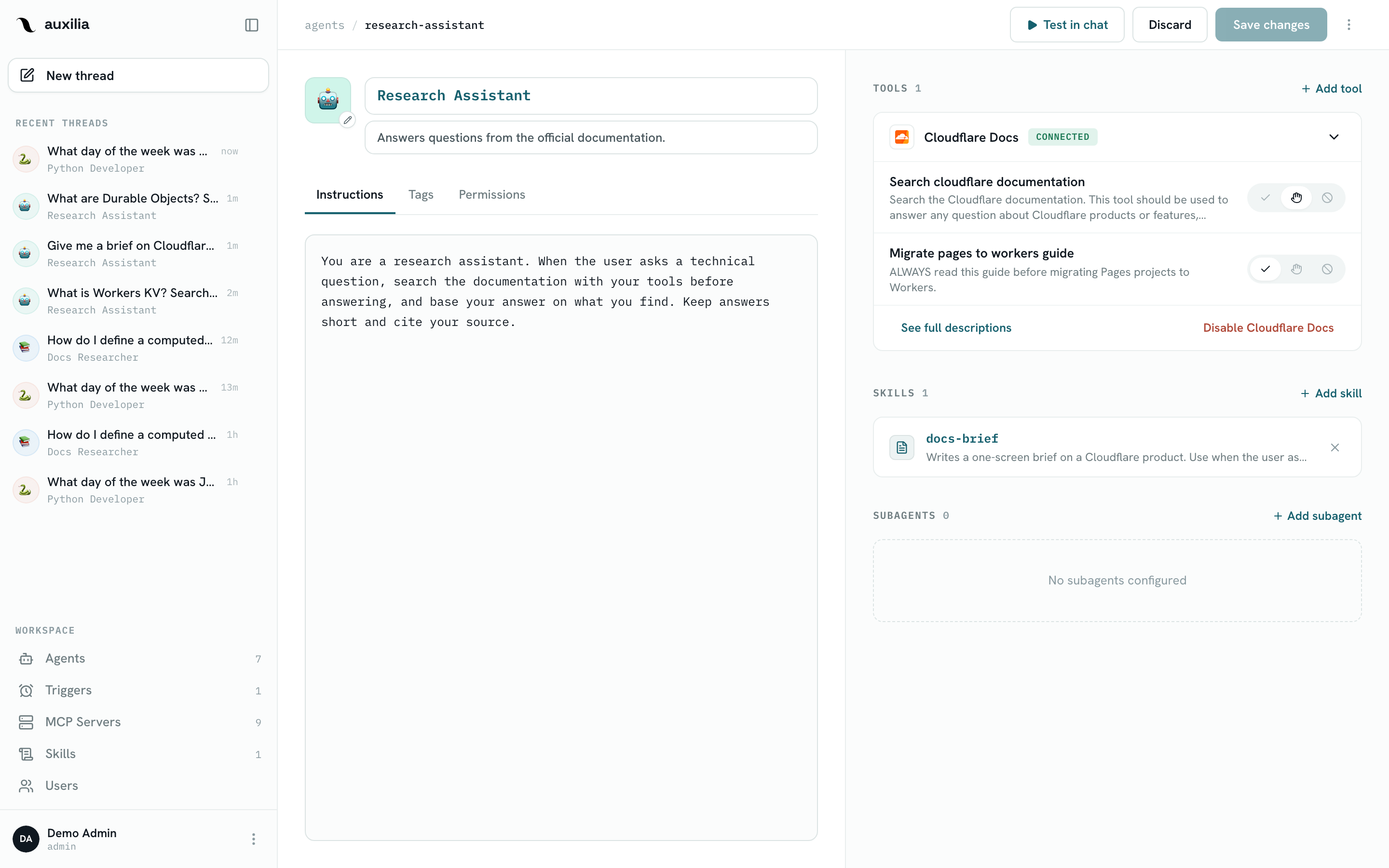
Always allow
The tool runs immediately when the LLM calls it. No prompt, no interrupt.
Use for: read-only tools, low-risk actions, tools you trust completely.
Needs approval
When the LLM calls the tool, the run pauses with a human-in-the-loop interrupt . The chat shows an approval card with the tool name and the exact arguments. The user can:
- Approve — the call proceeds and the agent resumes
- Reject — the tool returns a rejection message to the LLM, which decides what to do next
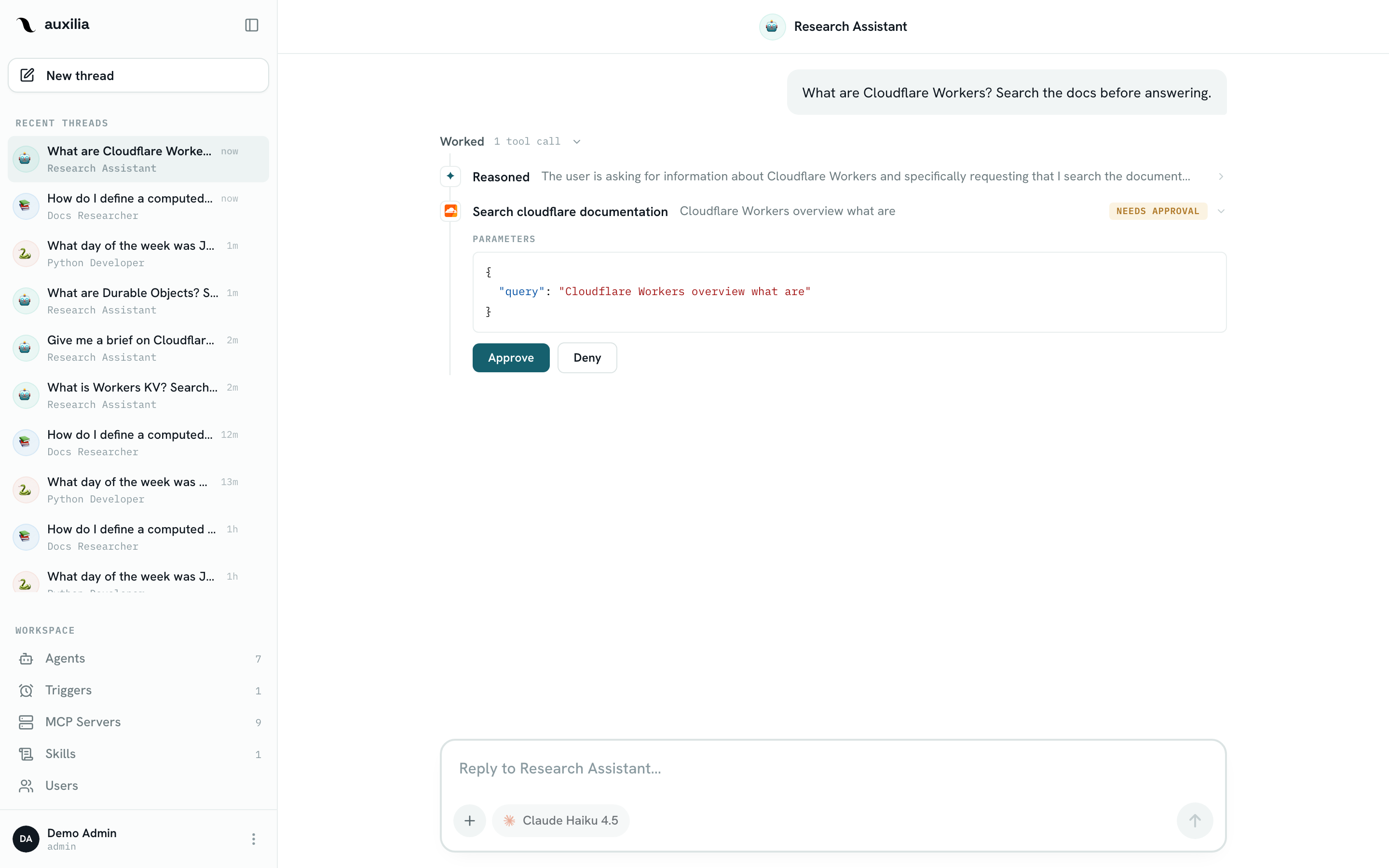
In Slack, approvals are posted as Block Kit messages with Approve and Reject buttons. A trigger run that hits an approval pauses the same way, until someone approves it from the thread.
Use for: write operations, actions with side effects, tools that modify external data.
Disabled
The tool is stripped from the toolset the LLM sees. The model cannot call it and does not know it exists.
Use for: tools that are off-topic for the agent, or tools you want to temporarily kill-switch.
Changing tool settings
- Open the agent and click Edit
- Expand the server card in the Tools section
- Set each tool’s three-state toggle — Always allow, Needs approval or Disabled
- Save changes
Tool discovery and sync
Tool schemas are fetched from the MCP server when you bind it, and again each time the server card connects in the editor. New tools are merged in as Always allow; your existing statuses are kept. They are not re-fetched on every message.
Defaults
When an MCP server is first bound to an agent, every tool defaults to Always allow. Review the list and tighten writes before exposing the agent to users.
Per-agent, per-server
Tool settings live on the agent-server binding, so the same MCP server can have different permissions on different agents:
- A Read-only CRM Agent might have every HubSpot write tool disabled
- A Sales Assistant might have HubSpot writes set to needs approval
- An Automation Agent owned by an admin might have everything always allow
Changing settings takes effect on the next message — existing thread checkpoints are unaffected.
Tool calls in chat
Every tool call appears in the thread inside a collapsible Worked timeline showing:
- The tool name and the MCP server it belongs to
- The input arguments the LLM passed
- The result the server returned (or the error, if it failed)
- Whether the call was auto-approved or user-approved
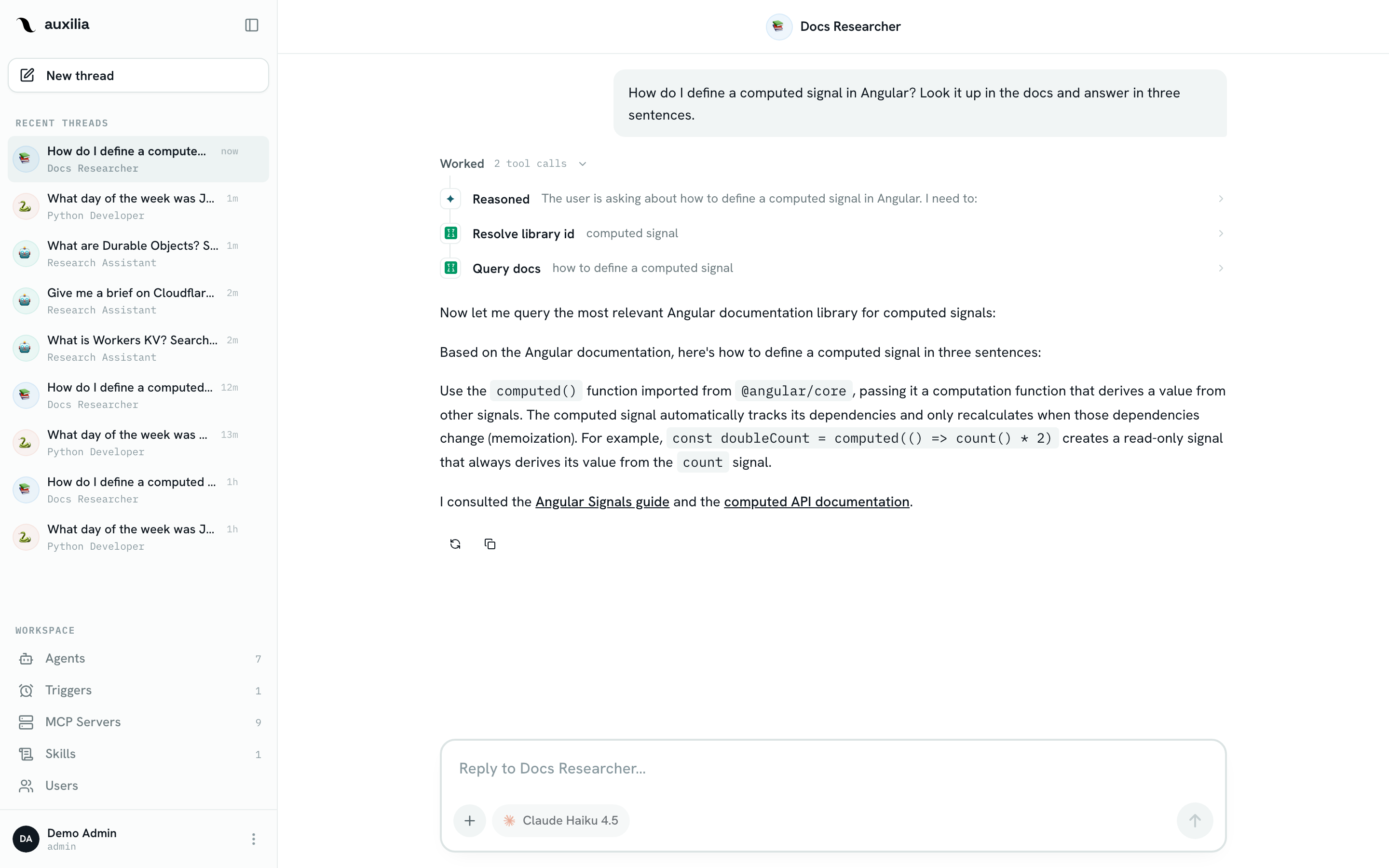
Errors are surfaced inline. The LLM sees the error string as the tool result and decides whether to retry, call a different tool, or explain the problem to the user.