Generate slide decks with a skill from GitHub and a custom sandbox image
A deck-builder skill versioned in a repository, a Docker image with python-pptx as the sandbox runtime, and the connect → preview → sync → adopt loop that keeps agents on a reviewed version.
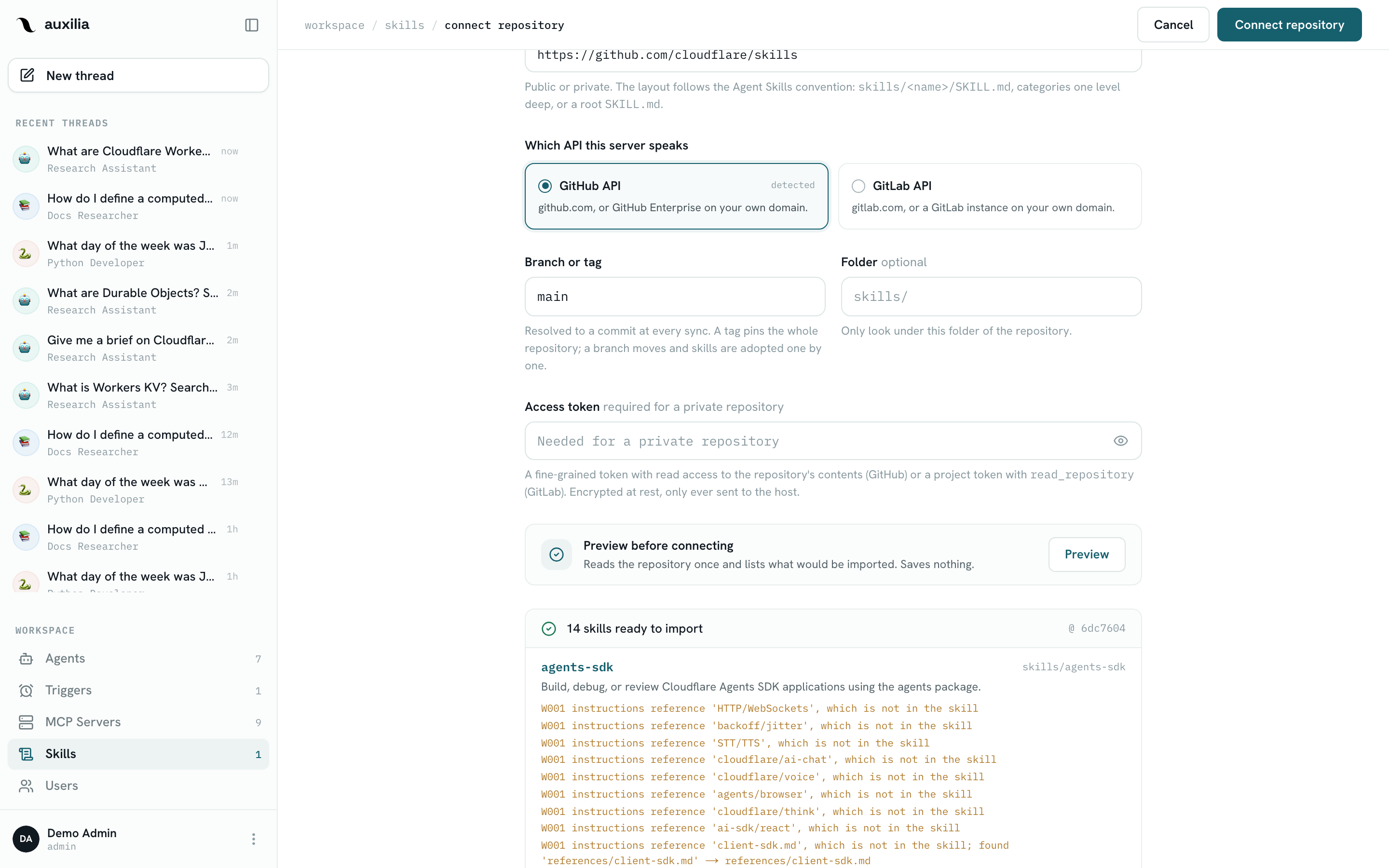
A recurring ask for any assistant is “turn this into a few slides”. Models are good at the outline and bad at the file: producing a real .pptx takes a library, a template, and a procedure that doesn’t drift from deck to deck. That’s what a skill with scripts is for — and since scripts need somewhere to run, this guide also builds the sandbox image they run in.
You’ll end up with:
- a Docker image that has
python-pptx(andmatplotlibfor charts) preinstalled, used as the sandbox’s default image; - a
deck-builderskill living in a GitHub repository, synced into the auxilia Skills library and pinned to a revision; - an agent that reads the skill, runs its script, and hands the finished deck back through a channel you control.
How the pieces fit
GitHub repo ─── skills/deck-builder/SKILL.md ──┐   Skills → Sources (sync, review, adopt)
               skills/deck-builder/scripts/build_deck.py
               skills/deck-builder/assets/template.pptx
                                                ▼
                                  auxilia Skills library ── enabled on the agent
                                                │
Docker image (python-pptx, matplotlib) ── Settings → Sandboxes → Default image
                                                │
                              run: /tmp/auxilia-skills/deck-builder/scripts/build_deck.py
                                                │
                                        /tmp/deck.pptx  ──▶  storage bucket / Drive (signed link)
Two facts shape the design:
- Skills with scripts come from repositories. A skill written in the app is a single
SKILL.md; scripts and reference files are only imported from a connected Git source, where they can be reviewed and versioned. Sourced skills are pinned by content digest and updated deliberately (Review changes → Adopt this version). - The chat does not download files from the sandbox. A skill that produces a file must also deliver it: upload it somewhere and print a link, or hand it to an MCP tool. This guide uploads to a Google Cloud Storage bucket and prints a signed URL; swap in whatever your workspace already has.
Before you start
- A workspace admin account in auxilia (sandboxes and skill sources are admin features)
- A sandbox provider you can point at a custom image: OpenSandbox (used here — see Sandbox — Setup), or the equivalents noted in Step 1 for Daytona and Cloud Run
- A container registry your sandbox host can pull from (GitHub Container Registry, Artifact Registry, Docker Hub…)
- A GitHub repository for the skills (private is fine — you’ll paste a token)
- For the delivery step as written: a GCS bucket and a service account that can write to it, mounted into the sandbox as in Google Sheets from a sandbox
Step 1 — Build the sandbox image
Everything the script imports has to be in the image (or pip-installed at sandbox creation through Default packages, which is slower on every cold start). Keep the image small and pin versions:
FROM python:3.12-slim

# Fonts for rendered charts; keep the layer small.
RUN apt-get update \
 && apt-get install -y --no-install-recommends fonts-dejavu-core \
 && rm -rf /var/lib/apt/lists/*

RUN pip install --no-cache-dir \
      python-pptx==1.0.2 \
      matplotlib==3.9.2 \
      google-cloud-storage==2.18.2

WORKDIR /tmp
Build, tag and push:
export IMAGE=ghcr.io/acme/agent-sandbox:2026.09
docker build -t $IMAGE .
docker push $IMAGE
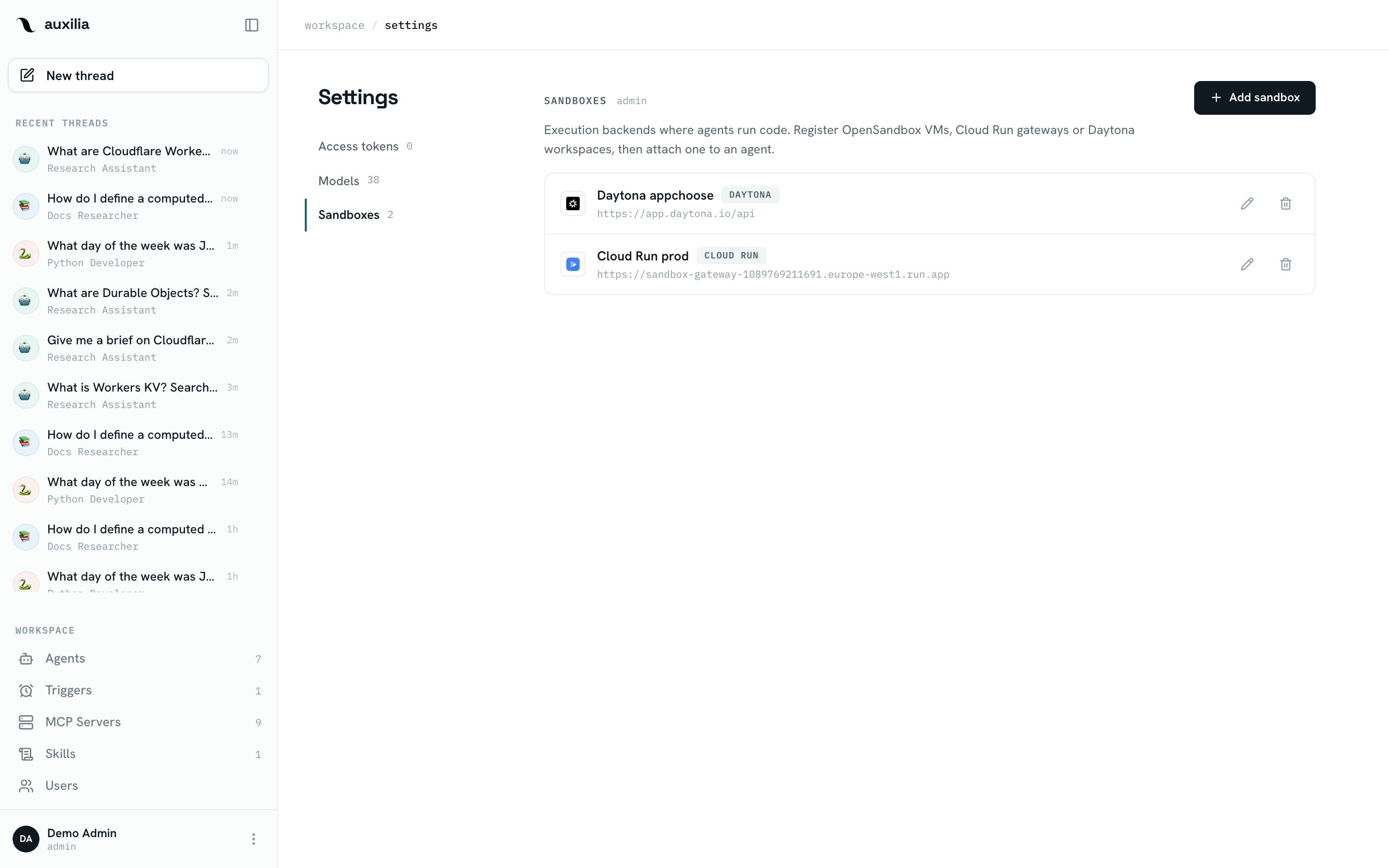
Then make it the sandbox’s image in Settings → Sandboxes → your OpenSandbox sandbox → Edit sandbox → Default image = ghcr.io/acme/agent-sandbox:2026.09. The OpenSandbox host pulls it on first use; a private registry needs the Docker daemon on that host to be logged in.
The same idea maps to the other providers:
| Provider | Where the image goes |
|---|---|
| OpenSandbox | Default image field of the sandbox — any image the Docker host can pull |
| Daytona | Create a Daytona snapshot from your image, then put its name in the sandbox’s Snapshot (optional) field |
| Cloud Run | The gateway’s own container image is the sandbox environment — add the pip install to the gateway Dockerfile and redeploy it (see Cloud Run Sandboxes) |
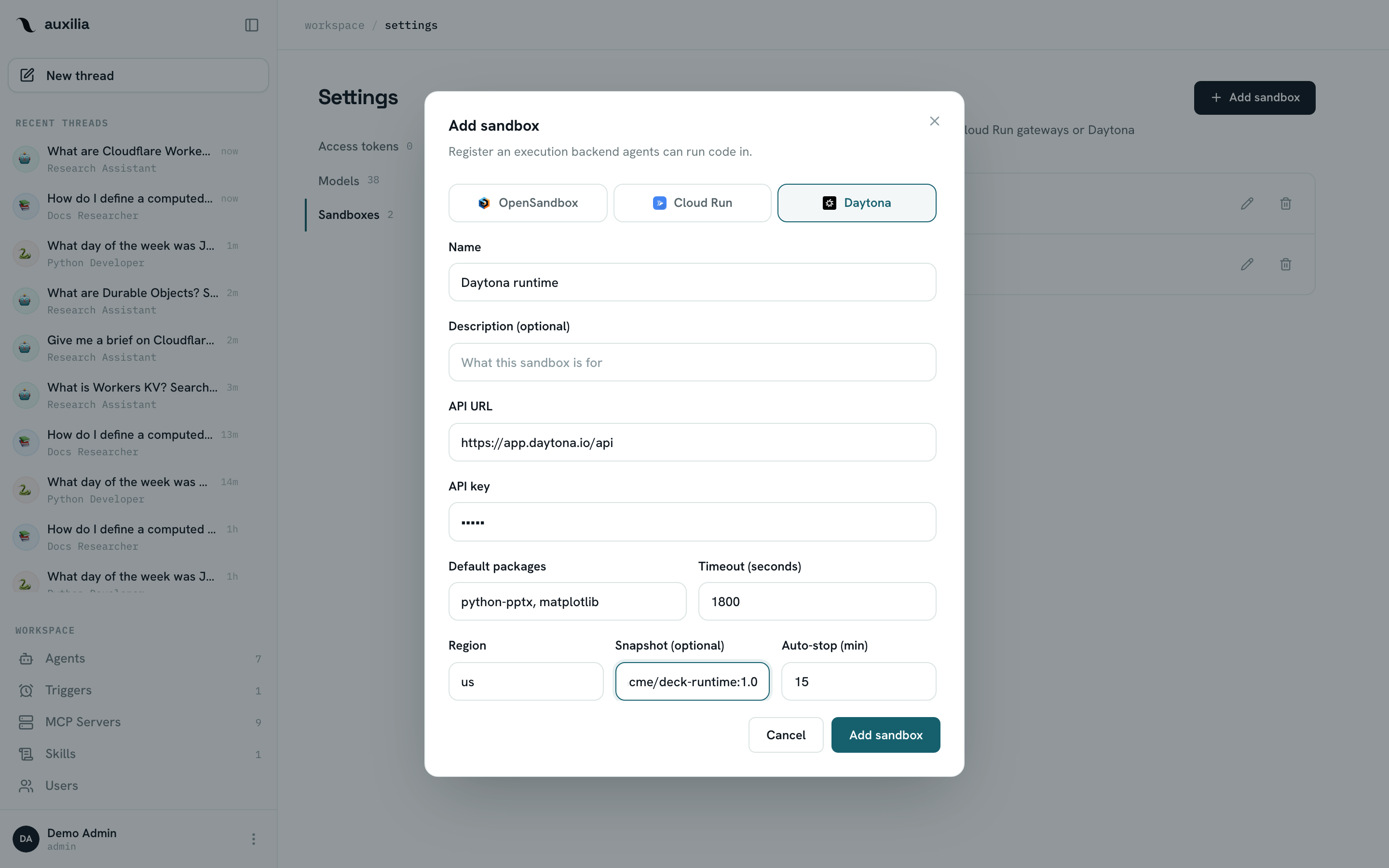
Existing threads keep their sandbox until it expires; a new image only applies to sandboxes created afterwards. Start a fresh thread to test.
Step 2 — Write the skill in a repository
Skills follow the open Agent Skills layout: a folder named after the skill with a SKILL.md (YAML frontmatter name + description, then the procedure) plus optional scripts/, references/, assets/. Anything under scripts/ marks the skill as needing code execution.
acme-skills/
└── skills/
    └── deck-builder/
        ├── SKILL.md
        ├── scripts/
        │   └── build_deck.py
        └── assets/
            └── template.pptx
SKILL.md
The description is how agents decide to pick the skill, so say when as well as what. compatibility is an optional, human-readable spec field — useful to state the runtime the scripts assume.
---
name: deck-builder
description: Build a branded .pptx slide deck from an outline and deliver it as a download link. Use when the user asks for slides, a deck, a presentation or a keynote.
compatibility: Needs a sandbox with python-pptx and google-cloud-storage (agent-sandbox image ≥ 2026.09).
---

# When to use
The user wants a presentation. Not for one-off charts or documents.

# Steps
1. Agree on the outline first: title, audience, 4–8 slides, one takeaway
   per slide. Ask at most one clarifying question; otherwise propose an
   outline and proceed.
2. Write the outline as JSON to `/tmp/outline.json`:

   ```json
   {
     "title": "Q3 Review",
     "subtitle": "Revenue team — 2026-09-23",
     "slides": [
       {"heading": "Where we landed", "bullets": ["…", "…"], "notes": "…"},
       {"heading": "Pipeline by rep", "chart": {"labels": ["A","B"], "values": [12, 9], "unit": "deals"}}
     ]
   }
   ```

3. Run the builder by its absolute path — do not copy or modify it:

   `python /tmp/auxilia-skills/deck-builder/scripts/build_deck.py /tmp/outline.json /tmp/deck.pptx`

   It prints a single line `DECK_URL=https://…` when the upload succeeds.
4. Reply with the outline (one line per slide) and the link. Say the link
   expires in 24 hours.

# Rules
- Never paste raw JSON or Python into the answer.
- If the script fails, show the last 20 lines of its output and stop —
  do not rewrite the builder.
- Keep decks under 12 slides unless the user insists.
scripts/build_deck.py
A deterministic CLI: JSON in, .pptx out, link printed. The template gives every deck the same look; the script only fills placeholders.
#!/usr/bin/env python3
"""Build a .pptx from an outline JSON and print a signed download URL."""
import json, os, sys, datetime, pathlib
from pptx import Presentation
from pptx.util import Inches, Pt

HERE = pathlib.Path(__file__).resolve().parent
TEMPLATE = HERE.parent / "assets" / "template.pptx"
KEY = os.environ.get("GOOGLE_APPLICATION_CREDENTIALS", "/secrets/storage-sa.json")
BUCKET = os.environ.get("DECK_BUCKET", "acme-agent-decks")


def add_chart(slide, chart, out_png):
    import matplotlib
    matplotlib.use("Agg")
    import matplotlib.pyplot as plt
    fig, ax = plt.subplots(figsize=(8, 4))
    ax.bar(chart["labels"], chart["values"])
    ax.set_ylabel(chart.get("unit", ""))
    fig.tight_layout(); fig.savefig(out_png, dpi=200); plt.close(fig)
    slide.shapes.add_picture(str(out_png), Inches(1), Inches(1.6), width=Inches(8))


def build(outline, out_path):
    prs = Presentation(str(TEMPLATE)) if TEMPLATE.exists() else Presentation()
    title_layout, body_layout = prs.slide_layouts[0], prs.slide_layouts[1]

    s = prs.slides.add_slide(title_layout)
    s.shapes.title.text = outline["title"]
    if len(s.placeholders) > 1:
        s.placeholders[1].text = outline.get("subtitle", "")

    for i, spec in enumerate(outline["slides"]):
        s = prs.slides.add_slide(body_layout)
        s.shapes.title.text = spec["heading"]
        if "chart" in spec:
            add_chart(s, spec["chart"], f"/tmp/chart_{i}.png")
        else:
            tf = s.placeholders[1].text_frame
            tf.text = spec["bullets"][0]
            for b in spec["bullets"][1:]:
                p = tf.add_paragraph(); p.text = b; p.font.size = Pt(20)
        if spec.get("notes"):
            s.notes_slide.notes_text_frame.text = spec["notes"]
    prs.save(out_path)


def upload(path):
    from google.cloud import storage
    client = storage.Client.from_service_account_json(KEY)
    blob = client.bucket(BUCKET).blob(
        f"decks/{datetime.date.today():%Y/%m}/{pathlib.Path(path).name}")
    blob.upload_from_filename(path)
    return blob.generate_signed_url(version="v4",
                                    expiration=datetime.timedelta(hours=24))


if __name__ == "__main__":
    outline_path, out_path = sys.argv[1], sys.argv[2]
    build(json.load(open(outline_path)), out_path)
    print(f"DECK_URL={upload(out_path)}")
Delivery is the one part you’ll want to adapt. Options, from least to most setup:
- Bucket + signed URL (above): needs a service-account key mounted read-only into the sandbox — the same Volume mounts pattern as the Sheets tutorial — and a bucket the account can write to. Works with S3-compatible stores the same way.
- An MCP tool on the same agent: if the agent is bound to a Google Drive or Slides MCP server that exposes an upload tool, have the skill end with “upload
/tmp/deck.pptxwith the Drive tool and share the link” instead of theupload()step — the file still has to leave the sandbox as bytes, so check the tool accepts them. - Your own drop endpoint: a tiny HTTPS service that accepts a
PUTand returns a link. Simplest to reason about in a locked-down network.
Commit and push:
git add skills/deck-builder && git commit -m "feat(skills): deck-builder" && git pushStep 3 — Connect the repository in auxilia
Open Skills → Sources → Connect repository:
| Field | Value |
|---|---|
| Host | GitHub (detected from the URL; pick explicitly for a self-hosted instance) |
| Repository URL | https://github.com/acme/acme-skills |
| Branch or tag | main (a tag pins the source until you change it) |
| Folder | skills/ — where the skill folders live; leave empty if they sit at the repository root |
| Access token | a fine-grained personal access token with read access, for a private repository |
Click Preview first: auxilia reads the repository without saving anything and lists what it found — deck-builder, its files, and any validation warnings (a bad name, a missing description, a folder without SKILL.md). Then Connect: the source is saved and the first sync runs.
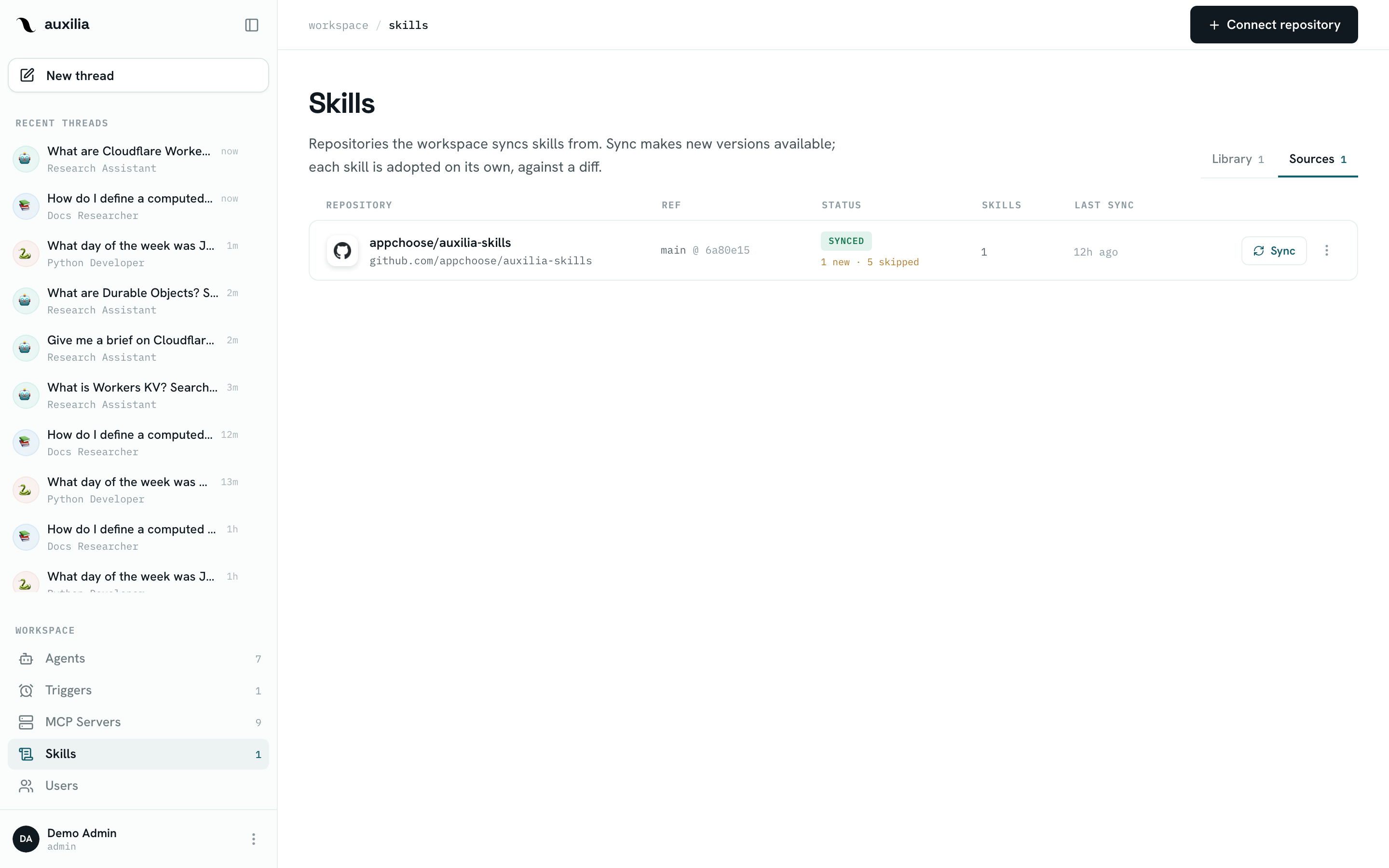
Back in the Library, deck-builder is now a skill with a CODE EXECUTION badge (it has a script). Open it: the definition is read-only (it’s edited in the repository, not here), and the right panel shows its files.
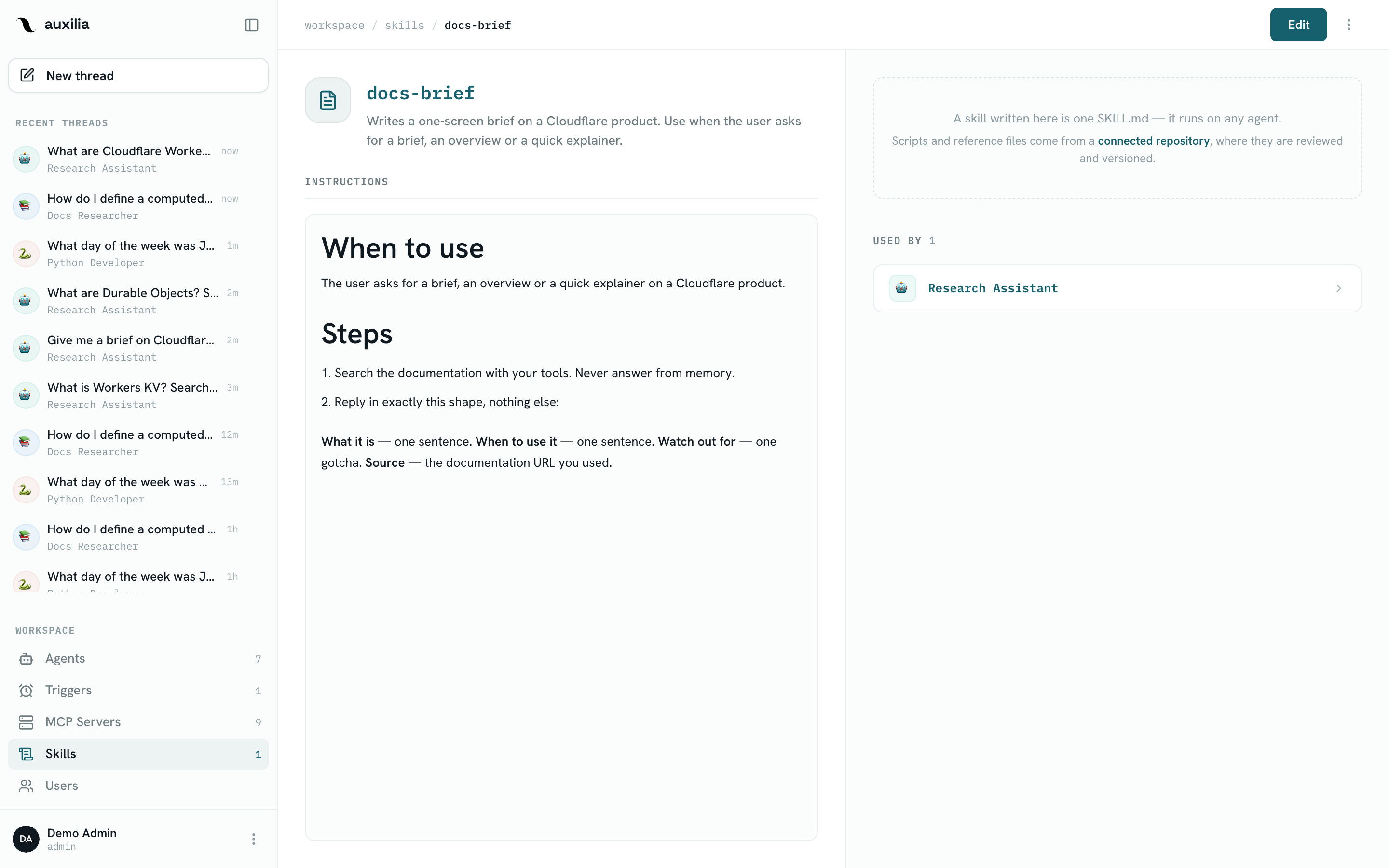
Skill names are unique per workspace; a repository skill whose name is already taken is reported as skipped in the sync report until one of them is renamed.
Step 4 — Enable it on a sandbox-bound agent
Open the agent that owns the sandbox from Step 1 (or create one and Add tool → the sandbox), then Edit → Add skill → deck-builder → Save changes.
If the agent had no sandbox, the skill still attaches — its instructions apply — but the row warns that its script won’t run there and offers Turn on code execution in place. A supervisor without a sandbox can also delegate the run to a subagent that has one: the script exists at the same absolute path in the subagent’s sandbox. See Skills.
Step 5 — Ask for a deck
Build a 6-slide deck reviewing Q3 for the revenue team: where we landed vs plan,
pipeline by rep (chart), top 3 wins, top 3 risks, next quarter's focus, asks.
Numbers: plan 1.2M, landed 1.31M; pipeline by rep A 12, B 9, C 15 deals.
In the chain of thought you’ll see the agent read /tmp/auxilia-skills/deck-builder/SKILL.md, write /tmp/outline.json, run the builder, and answer with the outline and the DECK_URL link.
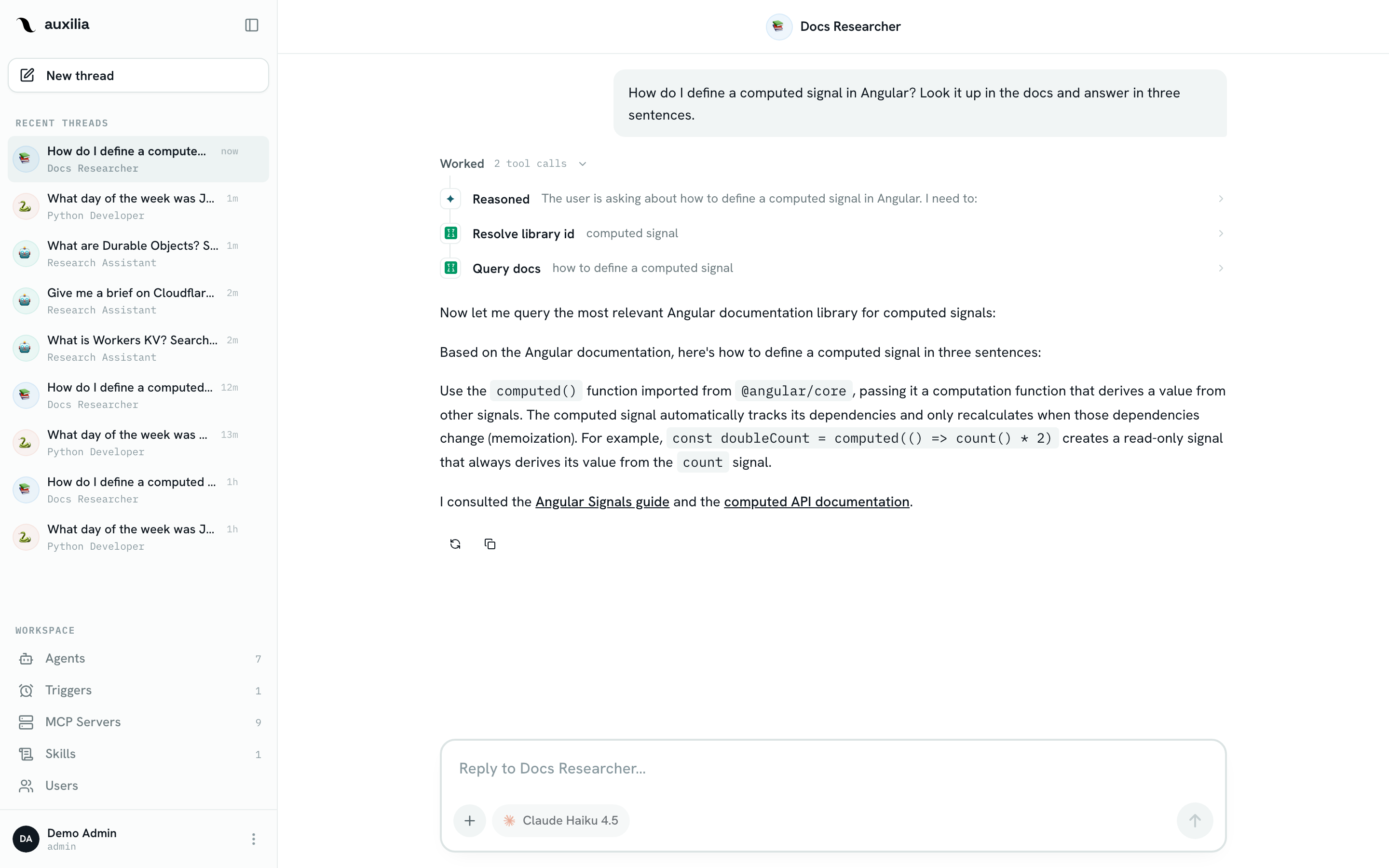
Skills are uploaded into the sandbox at the start of the run (skipped when the digest hasn’t changed), so the first run on a new sandbox is a little slower than the next ones.
Step 6 — Ship an update
Change the template, tighten the rules, add a chart_type option — then:
- Push to
main(or move the tag) - Skills → Sources → Sync on the repository. The confirmation shows what the sync would do (new, updated, gone, skipped, unchanged) before it runs
- In the Library,
deck-buildernow carries an UPDATE badge. Open it → Review update: a per-file diff grouped by kind (instructions, scripts, references, assets) - Adopt this version — the skill is re-pinned to the new revision and every agent picks it up on its next run
Until you adopt, agents keep running the pinned version, so a sync never changes behaviour behind your back. If the skill disappears upstream it stays available, marked GONE UPSTREAM, pinned to the last adopted revision; disconnecting the source turns its skills into in-app skills you can edit directly.
Troubleshooting
| Symptom | Likely cause |
|---|---|
ModuleNotFoundError: pptx | The sandbox didn’t use your image — check Default image and start a new thread; on Daytona check the snapshot name |
| The agent rewrites the script instead of running it | Its SKILL.md step 3 must say “by its absolute path — do not copy or modify”; also check the skill is enabled on this agent, not a sibling |
DECK_URL never printed, 403 from storage | The bucket isn’t writable by the mounted service account, or the key path differs from KEY in the script |
| Skill shows scripts inactive on the agent | The agent has no sandbox bound — Add tool → the sandbox |
| Sync reports the skill as skipped | Name collision with another library skill (W004) or a validation error — the report names it |
Where to go next
- Skills — the full model: library, sources, adoption, runtime paths
- Google Sheets from a sandbox — mounting credentials into OpenSandbox on a VM
- Triggers — a Monday-morning deck, built while you sleep