Sandbox Setup
The sandbox runtime is external — auxilia is a client of it. A workspace admin registers each runtime once under Settings → Sandboxes; agent authors then bind it to agents. Nothing about the sandbox is configured through environment variables.
This page covers the OpenSandbox and Daytona providers. For Google Cloud Run sandboxes, follow Cloud Run Sandboxes.
Option A — OpenSandbox
1. Run the controller
Follow the OpenSandbox installation guide to run the controller. The simplest setup is a Docker container on the same host or VPC as your auxilia backend.
Once it’s running, note:
- The domain it listens on (e.g.
sandbox.internal:8083— a private DNS name in production) - The API key, if the controller is configured to require one
2. Bring your own image (optional)
Every sandbox is created from the Default image you set on the sandbox; OpenSandbox pulls whatever image name you give it. python:3.12-slim works out of the box, but an image with your libraries pre-installed starts faster and doesn’t need network access at run time:
FROM python:3.12-slim
RUN pip install --no-cache-dir pandas==2.2.* matplotlib openpyxl gspread google-auth
Build it, push it to a registry the controller can pull from, and use its name as the default image. Lighter alternative: list the libraries under Default packages — they are pip installed into every fresh sandbox, which needs the sandbox to reach PyPI.
3. Register it in auxilia
In Settings → Sandboxes, click Add sandbox and pick OpenSandbox:
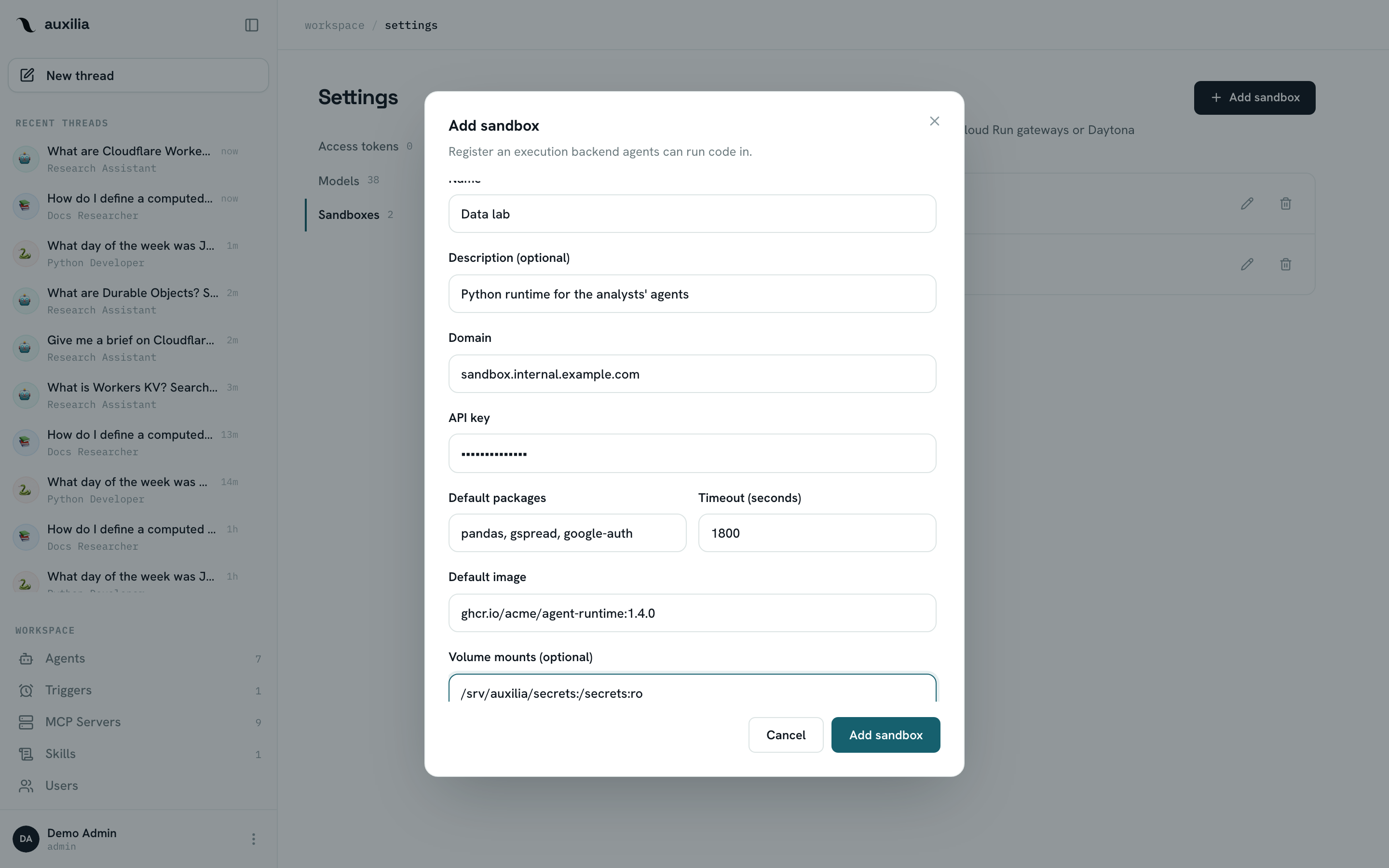
| Field | Notes |
|---|---|
| Name / Description | What agent authors see in the Add tool dialog |
| Domain | Where the controller is reachable, e.g. sandbox.internal:8083 |
| API key | Optional — if the controller requires one. Stored encrypted |
| Default image | Image every sandbox starts from. Default python:3.12-slim |
| Default packages | Comma-separated pip packages installed on creation |
| Timeout (seconds) | Per-command limit for execute. Default 1800 |
| Volume mounts | Host paths mounted into every sandbox, host_path:sandbox_path[:ro] — see Security |
| Use server proxy | Route file operations through the controller rather than direct container ports (recommended; on by default) |
Saving validates the whole configuration. Sandboxes created by auxilia on OpenSandbox get a 30-minute TTL, renewed at the start of every run of the thread.
Option B — Daytona
Daytona runs the containers for you, so there is nothing to host.
1. Get an API key
Create an API key in the Daytona dashboard (or on your self-hosted instance).
2. Build a snapshot (optional)
A Daytona snapshot is a pre-built image. Create one from a Dockerfile with the libraries your agents need and note its name; without one, sandboxes start from Daytona’s default image and rely on Default packages.
3. Register it in auxilia
In Settings → Sandboxes, click Add sandbox and pick Daytona:
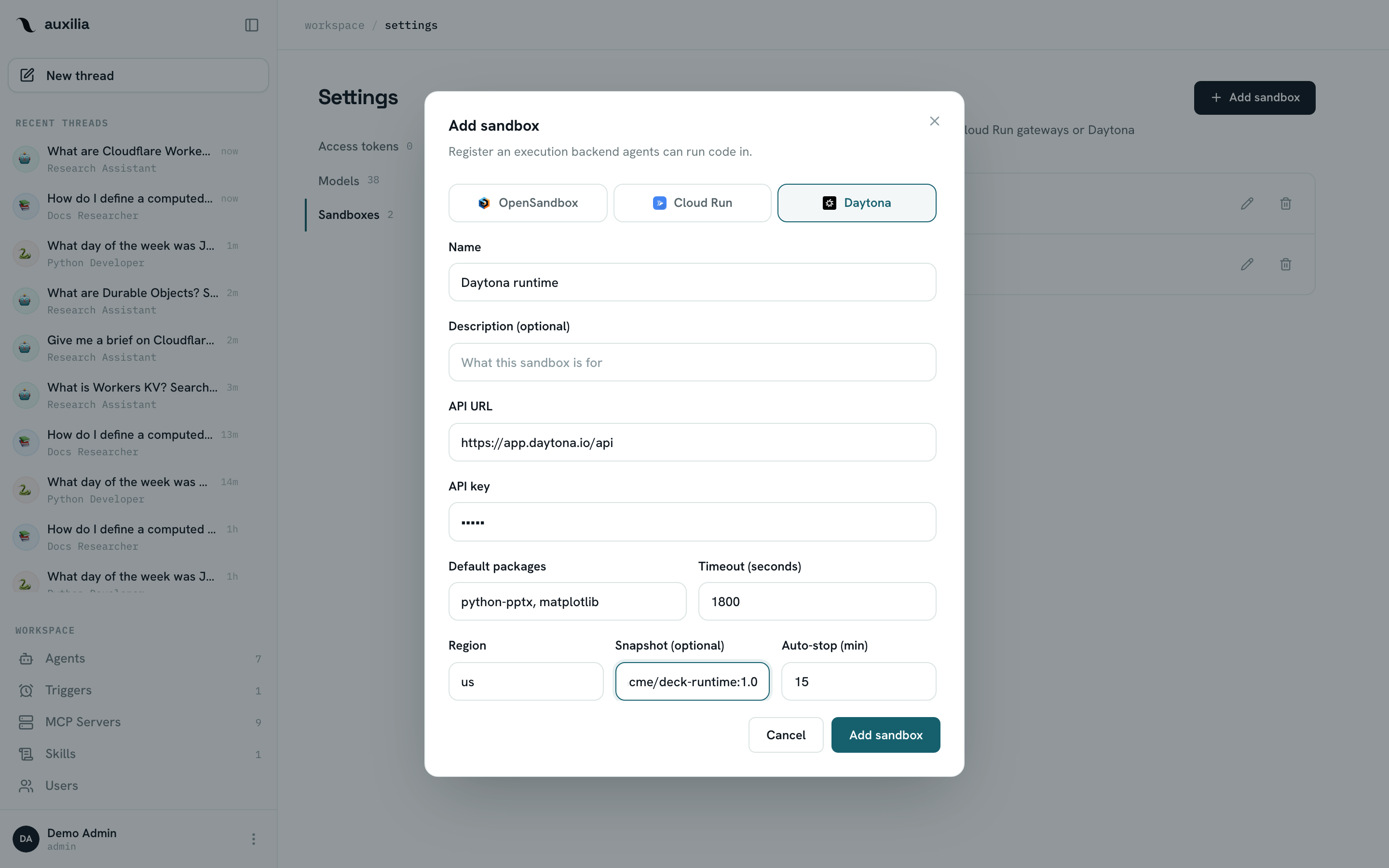
| Field | Notes |
|---|---|
| API URL | Default https://app.daytona.io/api; your instance URL if self-hosted |
| API key | Required. Stored encrypted |
| Region | Daytona target, default us |
| Snapshot | Optional snapshot name to create sandboxes from |
| Auto-stop (min) | Idle minutes before Daytona stops the sandbox. Default 15 — a stopped sandbox is started again on the thread’s next run, files intact |
| Default packages / Timeout (seconds) | As for OpenSandbox |
Bind it to an agent
- Open the agent and click Edit
- Add tool → pick the sandbox → Add
- Save changes
From the next message on, every run of that agent has a live sandbox. See Using the sandbox for the tools the LLM gains.
Check it works
- The Add tool dialog only lists sandboxes the workspace has registered
- Before every run auxilia probes the provider (one cheap authenticated call); if it fails, the agent’s chat shows a sandbox unavailable notice and names the sandbox — check the controller (or Daytona) logs and the credential you entered
- The sandbox’s Edit dialog shows a non-reversible hint of the stored secret (last characters and length), so you can confirm which key is configured without exposing it
Several sandboxes can coexist — e.g. one per team or per image. Deleting a sandbox that agents are still bound to lists those agents and asks you to confirm detaching them — they simply run without code execution afterwards.